
TECHNOLOGY
Computer Repair Services: How to Choose One, and What a Fair Price Looks Like

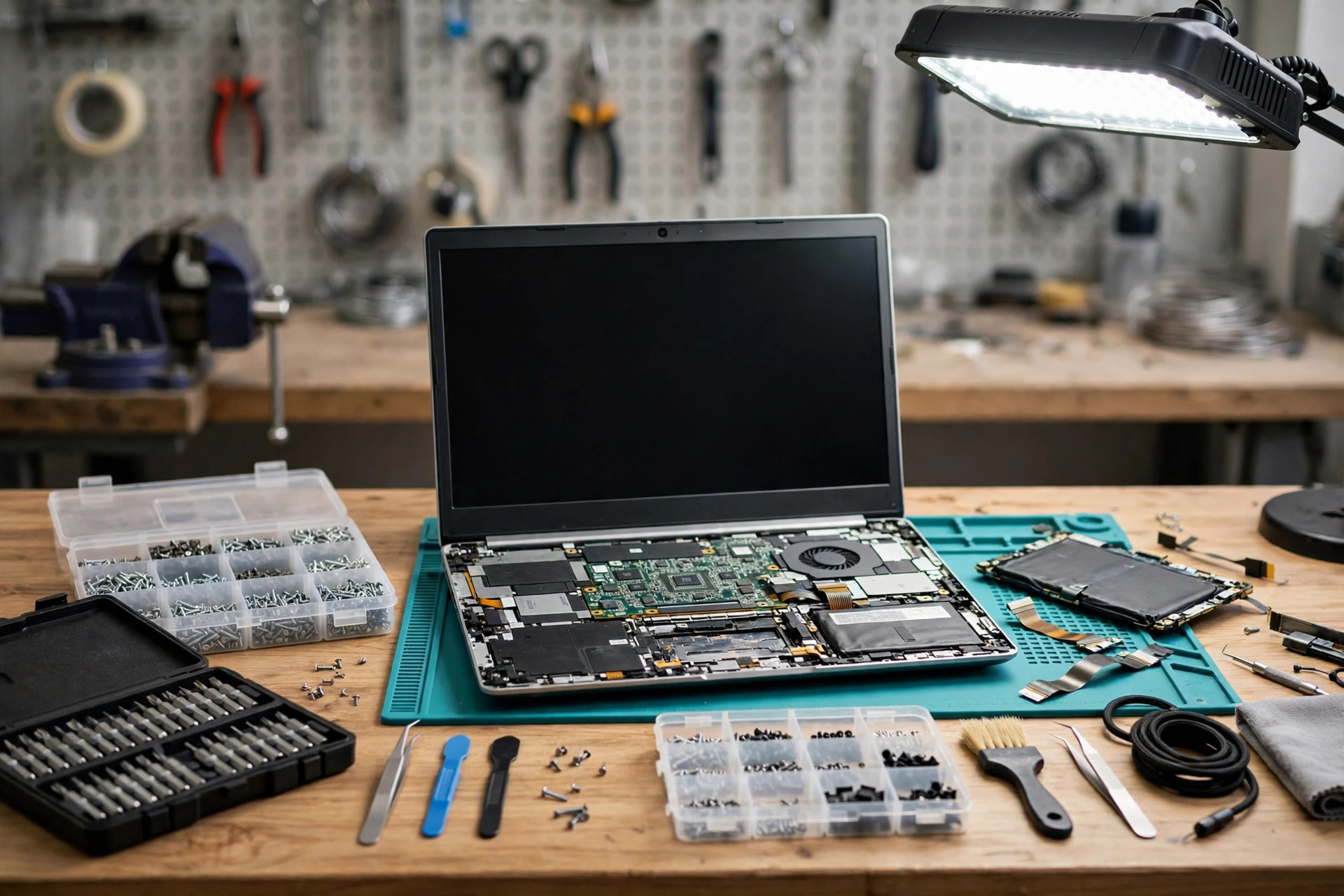
A computer usually breaks at the worst moment — before a deadline, in the middle of a project, the day before a trip. And the person you hand it to is about to see everything on it. So choosing a repair service is not just a price comparison. It is a trust decision, and it helps to know what you are actually buying.
Most repairs fall into a few familiar groups. A screen replacement, a battery that no longer holds a charge, a hard drive that has started clicking, a laptop that overheats and shuts itself down, a machine that has slowed to a crawl, or one that simply will not start. A good technician will tell you which of these it is before they start work, and what it will cost — not after.
What to ask before you hand it over
Start with the diagnosis. Is there a fee just to look at it, and is that fee deducted if you go ahead with the repair? Some shops diagnose for free; others charge a small amount. Either is fine, as long as you know before they open the case. A shop that will not give you a written estimate — parts, labour, and a total — is a shop to walk away from.
Next, ask about the parts. A genuine part from the manufacturer costs more and usually comes with a warranty. A compatible third-party part costs less and may be perfectly good for an older machine. Neither is wrong in itself. What matters is that you are told which one is going in, and that the choice is yours. The same question applies to your data: will they back it up before they work, and do they guarantee it will still be there afterwards? Back up your own files first if you possibly can — it is the one step that turns a bad repair into an inconvenience instead of a disaster.
Then ask how long it will take, and what the warranty covers. A screen replacement is often same-day. A part that has to be ordered takes longer, and a shop that promises it tomorrow without checking stock is guessing. A warranty of 30 to 90 days on parts and labour is normal; a shop offering none is telling you something.
When to repair, and when to replace
This is the question people actually want answered, and there is no single rule — but there is a useful one. If the repair costs more than about half of what a similar replacement would cost, and the machine is more than five years old, replacement usually wins. A new battery in a three-year-old laptop is a good repair. A new motherboard in a seven-year-old one rarely is.
There is also a middle option people forget: the repair that is not a repair at all. A computer that is slow because its storage is full, or because ten programs start with it every morning, does not need new parts. It needs a clean-up — removing what you do not use, updating what you do, and sometimes adding memory, which is often the cheapest meaningful upgrade there is. A technician who tells you that, instead of selling you a new drive, is one worth keeping.
One more thing, specific to the data on the machine. If the problem is the drive itself — it is not recognised, it makes noises, files have started disappearing — stop using the computer and do not keep restarting it hoping it will fix itself. Every attempt can make recovery harder, which is why hard drive recovery is its own specialist job, separate from ordinary repair. For everything else, the rule is simple: a clear estimate, known parts, a warranty in writing, and a shop that answers questions instead of rushing you. That combination is rarer than it should be, and it is the whole test.
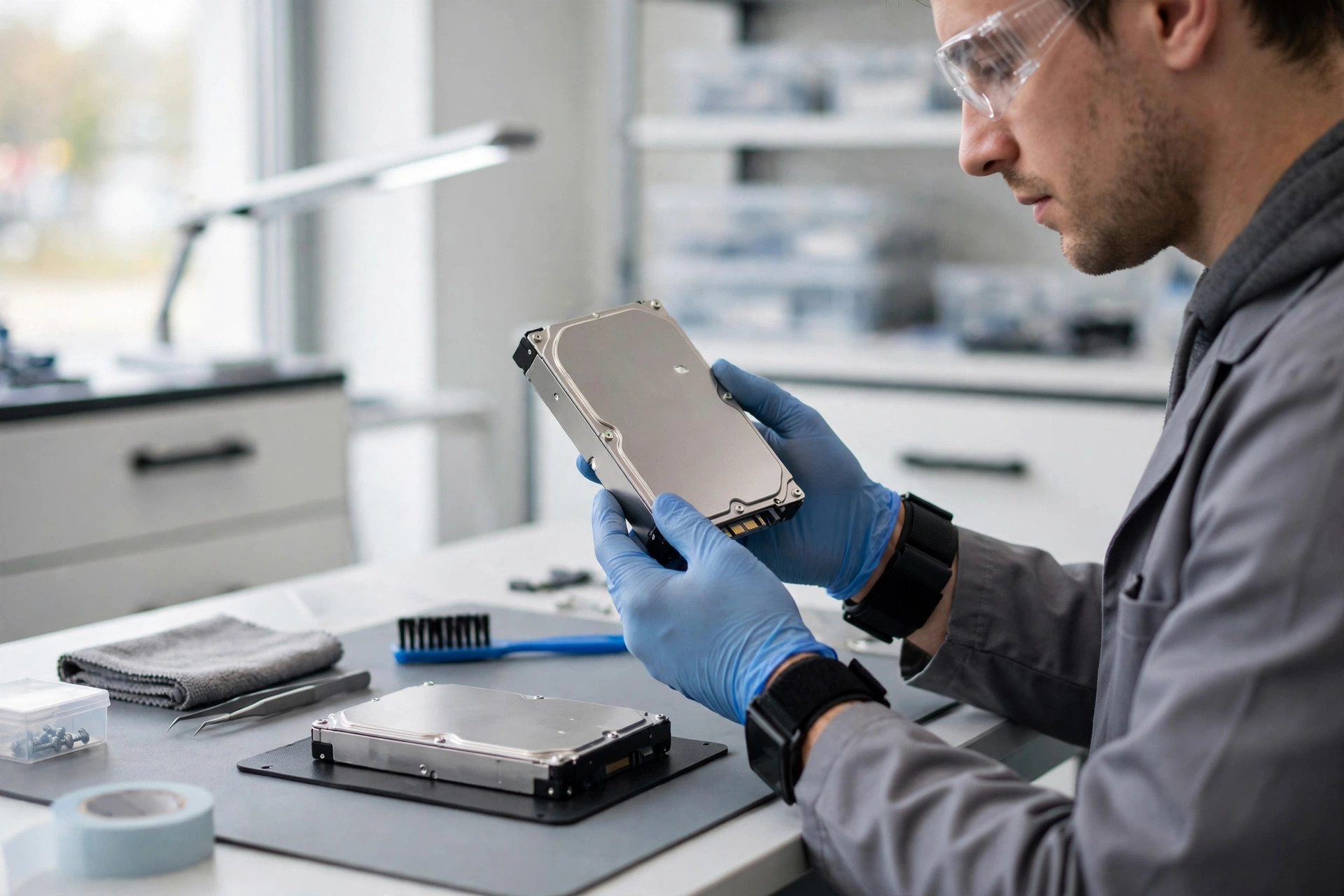
Few sounds are as unwelcome as a hard drive clicking. Or the message that the drive cannot be found. Or the realisation, a second too late, that the folder you just deleted held the only copy of something. Hard drive recovery is the work of getting data back from a drive that has stopped cooperating — and the first thing to know is that “stopped cooperating” covers several very different problems, with very different odds.
The simplest case is the one most people meet: files deleted by mistake, or a drive formatted in error. The data is usually still there, at least for a while, because deleting a file mostly removes the signpost pointing to it, not the file itself. Recovery software can often find it again — provided nothing new has been written over the same space since. That is why the first rule of recovery is to stop using the drive immediately. Every new file, every update, every restart risks writing over exactly what you are trying to save.
When it is a physical problem
The second case is physical: the drive makes clicking or grinding sounds, it is not recognised at all, it gets hot, or it was dropped. This is not a software job any more. Opening a drive outside a clean room lets dust onto surfaces that were never meant to meet air, and a home attempt can turn a recoverable drive into a dead one in minutes. Specialist labs open drives in filtered air, sometimes swap the reading heads or the control board for matching ones, and copy the data sector by sector before they try to make sense of it. It is slow, careful work, and it is priced accordingly — which is why a reputable lab will examine the drive and quote you before doing anything irreversible.
There is also a middle case that surprises people: the drive is fine, but the computer cannot read it because the file system is damaged, or the drive was encrypted and the key is lost, or the enclosure failed while the drive inside is healthy. A good technician checks these first, because they are the cheapest fixes of all — sometimes the recovery is as simple as taking the drive out of a broken case and putting it in a new one.
What to do, in order
If you suspect a failure, stop. Do not run the drive again and again hoping it will come back; do not install recovery software onto the same drive you are trying to recover from; do not freeze it, tap it, or open it. Those folk remedies come from a time when drives were built differently, and they do more harm than good now.
Then work out what the data is worth to you. Family photos with no other copy are worth a professional quote. A drive full of films you can download again is not. That sounds cold, but it is the question a lab will effectively ask you with its price, and it is better to ask it yourself first.
Finally, let the experience change one habit. Recovery exists because backups do not. A drive that is copied to a second place — an external drive, a cloud account, ideally both — makes the whole question go away. It is the least exciting advice in technology, and the most valuable: the same discipline of keeping a second copy that sits behind automatic tuning and every other system that is supposed to keep working when one part fails. If today is the day you set that up, the failed drive will have done you one favour at least.

You type half a web address and your browser finishes it for you. You close a tab by accident and bring it back with two clicks. You remember reading something last Tuesday but not where — and there it is, in the list. All of that is your browser history at work: a simple log, kept on your own device, of the pages you have visited.
It is easy to forget it exists until it surprises you. A shared family computer, a borrowed laptop, a phone handed to a friend to look at a photo — suddenly a list of everything you looked at is one click away. Understanding what the list contains, and what it does not, is the difference between a useful feature and an uncomfortable moment.
What is actually stored
For each visit, the browser records the page address, the title, and the time. That is the history itself. Around it sit related things that people often confuse with history: cookies, which remember that you were logged in; cached files, which help pages load faster next time; and saved passwords and form entries, which are separate features entirely. Clearing your history does not log you out of everything, and it does not delete your downloads. It just removes the list.
The list is local. It lives on your device, not on the website’s server and not in the cloud, unless you have turned on sync — in which case your history follows you from phone to laptop, which is convenient until you realise it also means the list exists in two places at once. Incognito or private mode, meanwhile, does not make you invisible. It simply does not add that session to the history list. Your internet provider and the websites themselves can still see the visit.
Why you might keep it — and when to clear it
Most people should keep it, most of the time. It is genuinely useful: finding a recipe you saw last week, returning to a half-read article, checking when you last visited a site. It also powers the address-bar suggestions that save typing, and it helps the browser suggest pages you actually visit instead of guessing.
There are three good reasons to clear it. The first is privacy on a shared device — if other people use your computer, a regular clear-out is simple hygiene, like logging out of email. The second is troubleshooting: a site that keeps showing an old version of a page is sometimes fixed by clearing history and cache together, because the browser stops serving its saved copy. The third is tidiness — a history list years long is rarely searched, and clearing it costs nothing.
You can also choose the middle path most browsers now offer: keep history, but set it to delete automatically after a few months, or clear only the last hour after a session you would rather not keep. That is usually the best answer. It keeps the useful part — finding things again — and drops the part nobody needs, which is a permanent record of every click.
One last thing worth knowing: clearing your history does not erase you from the internet. It erases the list on your device. The sites you visited may keep their own records, and so may your network. If that matters to you, the answer is not a cleaner history — it is a different conversation, about tracking and privacy, and the same kind of plain question we asked about end-to-end encryption: who can see this, and who should not be able to?

If you run a Facebook page and an Instagram account for the same business, you have probably felt the same friction: two apps, two inboxes, two places to schedule the same post, and no single view of what is working. Meta Business Suite is Meta’s answer to that — one free dashboard, on the web and as an app, that pulls both platforms together.
It is not a new social network and it is not a paid tool in itself. Think of it as the back office for your pages. From one screen you can publish a post to Facebook and Instagram at the same time, answer comments and direct messages from both, see how each post performed, and run ads without jumping between Business Manager, Creator Studio and the two apps. The older tools still exist underneath it, but Suite is the front door Meta now points everyone to.
What it actually covers
The first thing most people use is scheduling. You write a post once, pick the date and time, and Suite sends it to both platforms. For a small shop that posts three times a week, that alone saves a surprising amount of fiddling. The calendar view helps too — you can see the week at a glance instead of remembering what went out yesterday.
The second is the unified inbox. Comments on a Facebook post, a question in Instagram DMs, a reply to a story — they land in one list. That matters more than it sounds, because the most common way a small business loses a customer on social media is not a bad post. It is a question nobody answered for two days.
Then there is the insights side: which posts reached people, which ones got saved or shared, when your followers are actually online. None of this is exotic. It is the same kind of looking-at-the-numbers habit behind business analytics — the difference is that here the numbers are about attention rather than sales, and the decisions are smaller: post at 7 pm instead of 10 am, try a reel instead of a photo, answer faster.
Where it frustrates people
Suite is not loved unconditionally, and it is worth saying why before you commit to it. It changes its layout often, so a button you used last month may have moved. Some features work on desktop but not in the app, or the other way round. And it is built for Meta’s platforms only — if your customers are also on TikTok or WhatsApp Business, you are still juggling tools.
There is also a limit worth stating plainly. A dashboard can organise your posting and your replies, but it cannot make the content good. A scheduled mediocre post performs exactly like an unscheduled mediocre post, only more efficiently. The tool is worth using if you post regularly on both platforms and you are tired of switching apps. If you post once a month on Facebook alone, it adds little.
For a one-person business, the honest test is a fortnight: schedule everything through Suite, answer everything from its inbox, and check the insights once a week. If the week feels calmer, keep it. If you find yourself opening the Instagram app anyway because Suite hid something, go back to what works. The best tool here is the one you will actually open every day.
-

 CRYPTO9 months ago
Crypto.com Credit Card: Complete Guide to Rewards, Benefits, and How It Works
-

 BUSINESS7 months ago
Outsourcing Customer Service: A Complete Guide to Benefits, Challenges, and Smart Strategies
-

 HEALTH9 months ago
Benefits of Drinking Lemon with Warm Water Daily
-

 BLOG7 months ago
Soundgasm: A Complete Guide to the Popular Audio Sharing Platform
-

 BUSINESS8 months ago
How to Effectively Use Betanden for Enhanced Productivity
-

 TECHNOLOGY10 months ago
Fappelo: A Complete Guide to Digital Innovation and Brand Growth
-

 BUSINESS8 months ago
Deshoptec com: A Complete Guide to Understanding Deshoptec com in the Modern E-Commerce World
-

 HEALTH9 months ago
Foods High in Omega 3 Fatty Acids: Complete Guide to Nutrient-Rich Sources