
TECHNOLOGY
Infector Virus Explained: Meaning, Risks, Detection & Prevention Guide


Introduction
The term infector virus often appears in discussions about cybersecurity threats, but many people don’t fully understand what it means or how dangerous it can be. In simple terms, an infector virus is a type of malicious software designed to attach itself to files or programs and spread across systems without the user’s knowledge.
As cyber threats continue to evolve, understanding how these viruses operate is essential for protecting your data, devices, and online identity. In this guide, we’ll break down everything you need to know—from how infector viruses work to how you can detect and prevent them effectively.
What Is an Infector Virus?
An infector virus is a type of computer virus that embeds itself into executable files or software programs. Once activated, it spreads by infecting other files on the system.
Key Characteristics
- Attaches to legitimate files or programs
- Activates when the host file is executed
- Replicates itself across the system
- Can damage, corrupt, or steal data
How It Differs from Other Malware
| Feature | Infector Virus | Worm | Trojan |
|---|---|---|---|
| Requires host file | Yes | No | No |
| Self-replication | Yes | Yes | No |
| Spreads automatically | Limited | Yes | No |
| Disguised as legit | Sometimes | Rarely | Always |
This comparison shows that infector viruses rely heavily on user actions, unlike worms that spread automatically.
MyKaty Cloud: Complete Guide to Features, Benefits, and Best Use Cases
How an Infector Virus Works
Understanding how these viruses function helps you identify risks early.
Infection Process
- Attachment – The virus attaches itself to a file
- Execution – When the file runs, the virus activates
- Replication – It spreads to other files or systems
- Payload Delivery – It executes harmful actions
Common Targets
- Executable files (.exe)
- System files
- Application programs
- Boot sectors
Example Scenario
Imagine downloading a seemingly harmless software file. Once opened, the infector virus activates silently and begins infecting other files on your system. Over time, your system slows down, files become corrupted, and sensitive data may be compromised.
Types of Infector Viruses
Not all infector viruses behave the same way. Some are more aggressive than others.
1. File Infector Viruses
These attach themselves to executable files and spread when the program runs.
2. Boot Sector Infectors
They infect the boot sector of a storage device, making them active as soon as the system starts.
3. Macro Infectors
These target documents (like Word or Excel files) and activate through macros.
Comparison of Infector Virus Types
| Type | Target Area | Activation Method | Risk Level |
|---|---|---|---|
| File Infector | Executable files | Program execution | High |
| Boot Sector Infector | System boot area | System startup | Very High |
| Macro Infector | Documents | Opening infected file | Medium |
Each type poses different risks, making it important to use layered security measures.
Signs Your System May Be Infected
Spotting an infector virus early can save you from major damage.
Common Warning Signs
- Slow system performance
- Frequent crashes or errors
- Files becoming inaccessible or corrupted
- Unknown programs running
- Antivirus alerts
Red Flags to Watch Closely
- Sudden increase in file sizes
- Programs behaving unexpectedly
- Unauthorized access attempts
If you notice multiple symptoms, it’s best to act immediately.
How to Detect an Infector Virus
Detection is the first step toward recovery.
Effective Detection Methods
- Use updated antivirus software
- Run regular system scans
- Monitor system behavior
- Check file integrity
Detection Tools Comparison
| Tool Type | Purpose | Effectiveness |
|---|---|---|
| Antivirus | Detect known threats | High |
| Anti-malware | Remove advanced threats | High |
| Firewall | Block suspicious activity | Medium |
| Manual analysis | Identify unknown threats | Advanced |
Combining multiple tools improves your chances of identifying hidden threats.
How to Prevent Infector Virus Attacks
Prevention is always better than cure, especially when dealing with malware.
Best Prevention Strategies
- Download software only from trusted sources
- Avoid opening suspicious email attachments
- Keep your system and software updated
- Use reliable antivirus protection
- Enable firewalls
Daily Safety Habits
- Scan files before opening
- Avoid pirated software
- Backup your data regularly
- Use strong passwords
These small habits can significantly reduce your risk.
Pros and Cons of Infector Viruses (From an Analytical Perspective)
While viruses are harmful, understanding their structure has helped improve cybersecurity.
Pros
- Help researchers understand system vulnerabilities
- Drive innovation in cybersecurity solutions
- Improve detection technologies
Cons
- Data loss or corruption
- System damage
- Security breaches
- Financial loss
Overall, the negative impact far outweighs any indirect benefits.
Common Mistakes People Make
Even experienced users sometimes fall into traps.
Mistakes to Avoid
- Ignoring software updates
- Downloading from unverified sources
- Disabling antivirus protection
- Clicking unknown links
Why These Mistakes Matter
These actions create easy entry points for infector viruses, allowing them to spread quickly and silently.
Best Practices for Staying Safe
Adopting best practices ensures long-term protection.
Recommended Approach
- Use multi-layered security systems
- Keep backups in secure locations
- Educate yourself about new threats
- Monitor system activity regularly
Security Checklist
- ✔ Antivirus installed and updated
- ✔ Firewall enabled
- ✔ Regular backups created
- ✔ Suspicious files avoided
Consistency is key when it comes to cybersecurity.
Conclusion
An infector virus is more than just a technical threat—it’s a serious risk to your digital life. By understanding how it works, recognizing early warning signs, and following proven prevention strategies, you can protect your system effectively.
Cybersecurity isn’t just for experts anymore. With the right knowledge and habits, anyone can stay safe in today’s digital world.
FAQs
1. What is an infector virus in simple terms?
An infector virus is malware that attaches itself to files and spreads when those files are opened or executed.
2. How does an infector virus spread?
It spreads through infected files, downloads, email attachments, and sometimes removable devices.
3. Can antivirus software remove infector viruses?
Yes, most modern antivirus programs can detect and remove them if updated regularly.
4. What is the difference between a virus and a worm?
A virus needs a host file to spread, while a worm spreads automatically without user action.
5. How can I protect my computer from infector viruses?
Use antivirus software, avoid suspicious downloads, keep software updated, and follow safe browsing habits.

Introduction
In today’s digital-first world, cloud platforms are transforming how individuals and businesses manage data. One such emerging solution is mykaty cloud, a platform designed to simplify storage, collaboration, and data accessibility. Whether you’re running a small business or managing personal files, understanding how mykaty cloud works can help you stay organized, secure, and efficient.
This guide explores everything you need to know—from features and benefits to best practices and common mistakes—so you can make the most out of this cloud solution.
What is MyKaty Cloud?
MyKaty Cloud is a cloud-based storage and collaboration platform that allows users to store, access, and share files securely over the internet.
Key Functions:
- Data storage and backup
- Real-time collaboration
- Secure file sharing
- Cross-device accessibility
- Cloud-based workflow management
In simple terms, it replaces traditional storage systems with a smarter, more flexible digital solution.
Checwifeswap: A Modern Perspective on Relationship Dynamics and Digital Communities
Core Features of MyKaty Cloud
1. Secure Data Storage
Your files are stored in encrypted environments, ensuring protection from unauthorized access.
2. Multi-Device Access
You can access your data anytime, anywhere—from laptops, smartphones, or tablets.
3. Collaboration Tools
Teams can work together in real time, reducing delays and improving productivity.
4. Automatic Backups
No need to worry about losing data—automatic backups keep everything safe.
MyKaty Cloud Feature Breakdown
| Feature | Description | Benefit |
|---|---|---|
| Cloud Storage | Store files online securely | Saves physical storage space |
| File Sharing | Share files with links or permissions | Easy collaboration |
| Backup System | Automatic data backup | Prevents data loss |
| Remote Access | Access from any device | Work from anywhere |
| Security Protocols | Encryption and authentication | Keeps data safe |
Why Businesses Are Adopting MyKaty Cloud
Cloud adoption is growing rapidly—and platforms like mykaty cloud are leading the way.
Key Advantages:
- Cost Efficiency: No need for expensive hardware
- Scalability: Easily upgrade storage as needed
- Improved Productivity: Faster workflows and collaboration
- Data Security: Advanced encryption systems
Example Use Case
A marketing agency can use mykaty cloud to store campaign files, collaborate with team members, and share reports with clients instantly.
MyKaty Cloud vs Traditional Storage
| Factor | MyKaty Cloud | Traditional Storage |
|---|---|---|
| Accessibility | Anywhere, anytime | Limited to physical location |
| Cost | Subscription-based | High upfront hardware cost |
| Security | Encrypted & monitored | Risk of physical damage |
| Collaboration | Real-time | Limited or manual |
| Scalability | Flexible | Difficult to expand |
Best Use Cases for MyKaty Cloud
For Individuals:
- Storing personal files and photos
- Backing up important documents
- Accessing data across devices
For Businesses:
- Team collaboration
- Document management
- Remote work solutions
- Client file sharing
For Developers:
- Hosting project files
- Version control support
- Cloud-based testing environments
How to Get Started with MyKaty Cloud
Step-by-Step Guide:
- Sign Up: Create an account on the platform
- Upload Files: Start adding your data
- Organize Folders: Structure files for easy access
- Set Permissions: Control who can view or edit
- Enable Backup: Activate automatic backups
Best Practices for Using MyKaty Cloud
1. Organize Files Properly
Use folders and naming conventions to avoid confusion.
2. Set Strong Permissions
Limit access to sensitive files to authorized users only.
3. Regularly Update Data
Keep your files updated to avoid outdated information.
4. Use Two-Factor Authentication
Enhance security with additional login protection.
Common Mistakes to Avoid
- Ignoring Security Settings: Weak passwords can lead to breaches
- Poor File Organization: Makes retrieval difficult
- Over-sharing Access: Can compromise sensitive data
- Skipping Backups: Risk of accidental data loss
Pros and Cons of MyKaty Cloud
Pros:
- Easy accessibility
- High-level security
- Scalable storage
- Real-time collaboration
Cons:
- Requires internet connection
- Subscription costs
- Learning curve for beginners
MyKaty Cloud Optimization Framework
| Strategy | Action Step | Expected Outcome |
|---|---|---|
| File Organization | Use folders and naming rules | Faster file access |
| Security Enhancement | Enable 2FA and encryption | Improved data protection |
| Collaboration Setup | Assign roles and permissions | Better teamwork |
| Backup Management | Schedule automatic backups | Data safety |
| Storage Optimization | Remove unused files regularly | Efficient storage usage |
How MyKaty Cloud Improves Productivity
Cloud tools streamline workflows significantly.
Benefits Include:
- Faster file sharing
- Reduced email clutter
- Real-time updates
- Seamless remote work
As a result, teams spend less time searching for files and more time focusing on meaningful tasks.
Future of Cloud Platforms Like MyKaty Cloud
Cloud computing continues to evolve rapidly. Platforms like mykaty cloud are expected to integrate:
- AI-driven automation
- Enhanced cybersecurity systems
- Better data analytics tools
- Increased storage capabilities
This means users can expect smarter, faster, and more secure solutions in the near future.
Conclusion
Mykaty cloud is more than just a storage platform—it’s a complete solution for managing data efficiently in a connected world. With its powerful features, strong security, and flexible accessibility, it caters to both individuals and businesses alike.
By following best practices and avoiding common mistakes, you can unlock its full potential and transform the way you handle digital information.
FAQs
1. What is mykaty cloud used for?
It is used for storing, managing, and sharing files securely over the internet.
2. Is mykaty cloud safe?
Yes, it uses encryption and security protocols to protect data.
3. Can I access mykaty cloud on mobile?
Yes, it supports access across multiple devices including smartphones.
4. Is mykaty cloud suitable for businesses?
Absolutely, it offers collaboration tools and scalable storage options.
5. Does mykaty cloud require internet?
Yes, an internet connection is needed to access cloud data.
Introduction
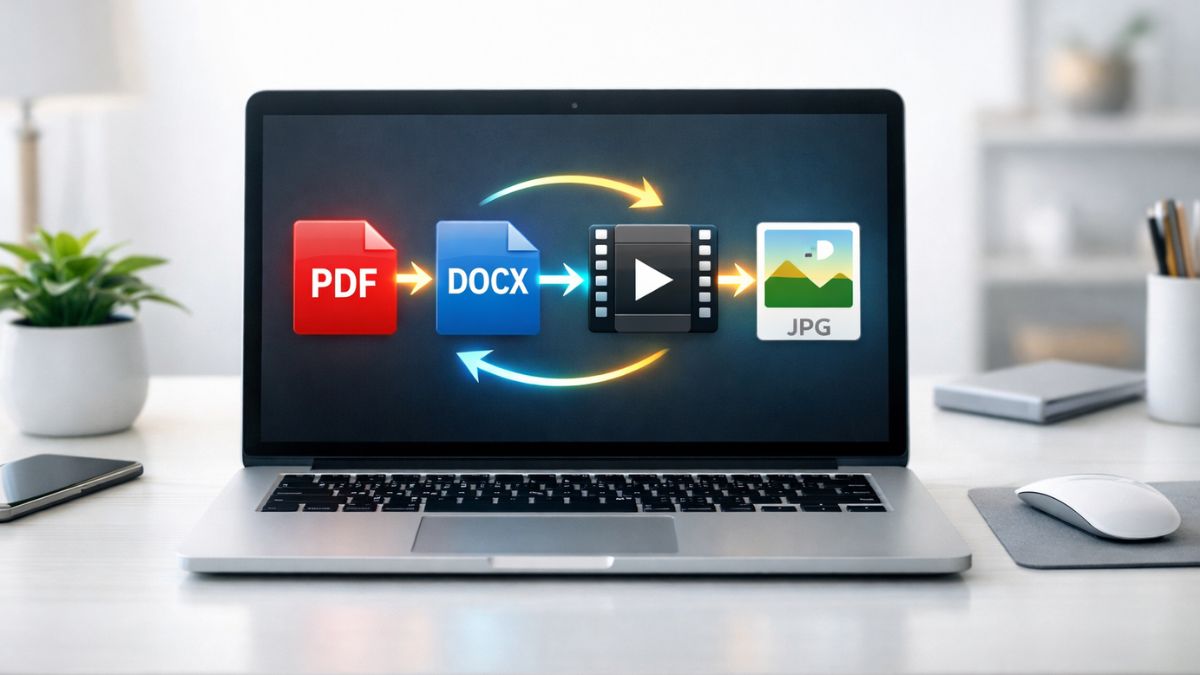
In today’s digital world, file content conversion plays a crucial role in how we share, store, and use information. Whether you’re turning a PDF into an editable document, compressing images, or converting videos, the ability to change file formats quickly can save both time and effort.
More importantly, businesses, students, and content creators rely on file conversion to maintain compatibility across devices and platforms. Without it, collaboration becomes difficult and workflows slow down. So, how does file conversion work, and how can you do it efficiently?
Let’s break it down step by step.
What Is File Content Conversion?
File content conversion is the process of transforming a file from one format into another while preserving its data. For example:
- Converting a PDF into a Word document
- Changing an image from PNG to JPG
- Turning a video into a compressed MP4 file
Why File Conversion Matters
- Ensures compatibility across devices
- Reduces file size for faster sharing
- Allows editing of otherwise locked files
- Improves accessibility and usability
Types of File Content Conversion
Understanding the different types of conversions helps you choose the right method for your needs.
Document Conversion
- PDF to Word
- Word to PDF
- Excel to CSV
Image Conversion
- JPG to PNG
- PNG to WebP
- RAW to JPEG
Audio and Video Conversion
- MP4 to AVI
- WAV to MP3
- MOV to MP4
Data File Conversion
- JSON to XML
- CSV to Excel
- Database exports
File Conversion Methods Compared
| Method | Best For | Speed | Quality Control | Ease of Use |
|---|---|---|---|---|
| Online Tools | Quick small tasks | Fast | Medium | Very Easy |
| Desktop Software | Large or bulk conversions | Medium | High | Easy |
| Command-Line Tools | Advanced users | Fast | Very High | Complex |
| Cloud APIs | Automation & scaling | Very Fast | High | Moderate |
Each method has its strengths. For instance, online tools are convenient, while desktop software offers better control.
Complete Guide to myinternetaccesss.net: Features, Benefits, and How to Use It Safely
How File Content Conversion Works
At its core, file conversion involves reading the structure of one format and rewriting it into another.
Key Steps
- Input Parsing – The system reads the original file
- Data Mapping – Content is matched to the new format
- Encoding – Data is rewritten in the target format
- Output Generation – The new file is created
Example
If you convert a PDF to Word:
- Text is extracted
- Formatting is analyzed
- Editable elements are recreated
Best Tools for File Content Conversion
Choosing the right tool can make a big difference in efficiency.
Popular Options
- Online converters (quick tasks)
- Desktop applications (professional use)
- Mobile apps (on-the-go conversions)
- APIs (automation and integration)
Tool Selection Criteria
| Feature | Why It Matters |
|---|---|
| Accuracy | Prevents data loss |
| Speed | Saves time |
| Security | Protects sensitive files |
| Batch Processing | Handles multiple files efficiently |
| Format Support | Covers diverse file types |
Best Practices for Efficient File Conversion
To get the best results, follow these proven practices.
1. Choose the Right Format
Always pick a format that suits your purpose:
- Editing → DOCX
- Sharing → PDF
- Web → JPG or WebP
2. Maintain File Quality
- Avoid multiple conversions
- Use high-quality source files
- Check resolution settings
3. Use Trusted Tools
Security is critical, especially when handling sensitive data.
4. Optimize File Size
- Compress images and videos
- Remove unnecessary elements
Common Mistakes to Avoid
Even simple conversions can go wrong if you’re not careful.
Frequent Errors
- Using low-quality source files
- Ignoring formatting issues
- Over-compressing files
- Choosing the wrong format
Impact of Mistakes
| Mistake | Result |
|---|---|
| Poor format choice | Incompatibility issues |
| Over-compression | Loss of quality |
| Wrong tool | Data corruption |
| Multiple conversions | Degraded output |
Pros and Cons of File Content Conversion
Pros
- Improves compatibility
- Enhances accessibility
- Saves storage space
- Enables editing
Cons
- Risk of data loss
- Formatting issues
- Security concerns with online tools
- Quality degradation
Real-Life Use Cases
File conversion is used everywhere. Here are a few practical examples:
Business
- Converting reports to PDFs for sharing
- Compressing files for email attachments
Education
- Turning lecture notes into editable formats
- Converting scanned documents into text
Content Creation
- Optimizing images for websites
- Converting videos for social media
Advanced Tips for Better Results
Want to take your file conversion skills to the next level?
Use Batch Processing
Convert multiple files at once to save time.
Automate Workflows
Use APIs or scripts to automate repetitive tasks.
Test Before Final Use
Always preview converted files to ensure accuracy.
Conclusion
File content conversion is more than just a technical task—it’s a vital part of modern digital workflows. From improving compatibility to enhancing productivity, the benefits are undeniable.
By choosing the right tools, avoiding common mistakes, and following best practices, you can ensure smooth and efficient conversions every time. Whether you’re a student, professional, or content creator, mastering file conversion will significantly boost your workflow.
FAQs
1. What is file content conversion?
It is the process of changing a file from one format to another while preserving its data.
2. Why is file conversion important?
It ensures compatibility, improves usability, and allows files to be edited or shared easily.
3. What is the best file format for sharing documents?
PDF is widely considered the best format for sharing due to its consistency across devices.
4. Can file conversion reduce quality?
Yes, especially when compressing images or videos excessively.
5. Are online file converters safe?
They can be safe, but always use trusted platforms and avoid uploading sensitive files.

Introduction
In modern wireless communication, maintaining strong and reliable connections is critical. One essential component that helps achieve this is the timing advance processor. It plays a crucial role in ensuring that signals between mobile devices and base stations are perfectly synchronized, even when users are moving or located far from towers.
Without proper timing adjustments, communication signals can overlap, causing interference and reduced network performance. That’s where timing advance processing steps in—fine-tuning signal transmission to keep networks efficient and stable.
In this guide, you’ll learn what a timing advance processor is, how it works, and why it matters for modern telecom systems.
What is a Timing Advance Processor?
A timing advance processor is a system used in wireless networks (especially GSM, LTE, and 5G) to adjust the timing of signal transmission from mobile devices so that signals arrive at the base station at the correct time.
Definition
A timing advance processor adjusts the transmission timing of mobile signals to compensate for distance, ensuring synchronized communication with the network tower.
Rosboxar: Complete Guide to Meaning, Uses, Benefits, and Best Practices
Why Timing Advance is Important in Wireless Communication
When a mobile device sends a signal, the distance between the device and the base station affects how long the signal takes to arrive. If multiple devices transmit without coordination, signals may collide.
Key Reasons It Matters:
- Prevents signal overlap and interference
- Improves call quality and data transmission
- Enhances network efficiency
- Supports multiple users simultaneously
How a Timing Advance Processor Works
Step-by-Step Process
- A mobile device sends a signal to the base station
- The base station measures the delay
- It calculates how much earlier the device should send signals
- The timing advance processor adjusts the transmission timing
- Signals arrive in perfect sync
Example
If a user is far from a tower, their signal takes longer to reach it. The system instructs the device to send signals slightly earlier, ensuring proper alignment.
Timing Advance Values Explained
Timing advance values determine how much earlier a signal should be transmitted.
| Distance from Tower | Signal Delay | Timing Adjustment |
|---|---|---|
| 0–1 km | Very Low | Minimal |
| 1–5 km | Moderate | Medium |
| 5–35 km | High | Significant |
This table shows how timing advance increases with distance to maintain synchronization.
Types of Timing Advance Processing
1. Static Timing Advance
- Predefined adjustments
- Used in simple systems
- Less flexible
2. Dynamic Timing Advance
- Adjusts in real-time
- Based on user movement
- More accurate
3. Adaptive Timing Advance
- Uses algorithms to optimize timing
- Common in LTE and 5G
- Highly efficient
Applications of Timing Advance Processor
Timing advance processors are widely used across different wireless technologies.
Major Use Cases
- Mobile networks (GSM, LTE, 5G)
- Satellite communication
- IoT networks
- Military communication systems
Comparison: Timing Advance in Different Network Generations
| Network Type | Timing Advance Capability | Accuracy Level | Use Case |
|---|---|---|---|
| GSM | Basic | Moderate | Voice calls |
| LTE | Advanced | High | Data + voice |
| 5G | Ultra-advanced | Very High | Real-time apps |
This comparison highlights how timing advance processors have evolved with newer technologies.
Benefits of Using a Timing Advance Processor
Key Advantages
- Improves network synchronization
- Reduces interference
- Enhances data speed
- Supports high user density
- Enables seamless mobility
Practical Example
In crowded areas like stadiums, timing advance ensures thousands of users can communicate without signal clashes.
Pros and Cons
Pros
- Boosts signal accuracy
- Enhances network reliability
- Supports large-scale communication
- Essential for modern telecom systems
Cons
- Complex implementation
- Requires continuous monitoring
- May increase processing overhead
Common Mistakes to Avoid
Even advanced systems can face issues if not properly configured.
Frequent Errors
- Incorrect timing calibration
- Ignoring environmental factors
- Poor network planning
- Overloading base stations
Avoiding these mistakes helps maintain optimal network performance.
Best Practices for Timing Advance Optimization
Recommended Strategies
- Regularly monitor signal delays
- Use adaptive timing systems
- Optimize base station placement
- Upgrade to modern network technologies
Optimization Framework
| Strategy | Impact Level | Implementation Difficulty |
|---|---|---|
| Real-time monitoring | High | Medium |
| Adaptive algorithms | Very High | High |
| Network planning | High | Medium |
| Hardware upgrades | Very High | High |
This framework helps prioritize improvements based on impact and effort.
Real-World Example of Timing Advance in Action
Imagine a user traveling in a car while on a call. As they move:
- Distance from the tower changes
- Signal delay varies
- Timing advance processor updates continuously
This ensures uninterrupted communication without drops.
Future of Timing Advance Processing
With the rise of 5G and beyond, timing advance processors are becoming more sophisticated.
Emerging Trends
- AI-driven optimization
- Ultra-low latency processing
- Integration with edge computing
- Improved IoT support
These advancements will further enhance network performance and reliability.
Conclusion
The timing advance processor is a vital component in modern wireless communication systems. It ensures that signals arrive at the right time, preventing interference and maintaining network efficiency.
As networks evolve, the importance of precise timing control continues to grow. By understanding how timing advance works and applying best practices, telecom systems can deliver faster, more reliable connectivity.
FAQs
1. What is a timing advance processor?
A timing advance processor adjusts signal transmission timing to ensure synchronization between mobile devices and base stations.
2. Why is timing advance important?
It prevents signal overlap, improves network performance, and ensures reliable communication.
3. How does timing advance work?
It calculates signal delay and instructs devices to transmit earlier based on distance from the tower.
4. Which networks use timing advance?
GSM, LTE, and 5G networks all use timing advance mechanisms.
5. Can timing advance improve internet speed?
Yes, by reducing interference and improving signal synchronization, it enhances overall data performance.
-

 BLOG2 months ago
Zuschneidfelle: Its Importance in Modern Craft and Material Processing
-

 TECHNOLOGY2 months ago
GlarklyHub: A Complete Guide to Understanding Its Digital Impact and Growing Popularity
-

 TECHNOLOGY2 months ago
Khareenjoyceromana: Its Growing Digital Identity in Online Spaces
-

 TECHNOLOGY2 months ago
Plangud: The Ultimate Guide and Its Digital Potential
-

 TECHNOLOGY4 weeks ago
Qiowofvuhoz: The Ultimate Guide to Understanding Its Meaning and Digital Impact
-

 TECHNOLOGY2 months ago
Aponeyrvsh: Its Concept, Digital Importance, and SEO Potential
-

 TECHNOLOGY2 months ago
Fappelo: A Complete Guide to Digital Innovation and Brand Growth
-

 TECHNOLOGY2 months ago
Plangud: Its Meaning, Usage, and Growing Digital Relevance